Important: TYPO3 Security Hole, and How To Close It
If you use the excellent open-source content management system
TYPO3,
there is
a very important security bulletin out this morning that you
should read immediately.
A flaw has been discovered in the rich-text editing component
that, if exploited, could allow an attacker to execute code on
your server. The flaw can be fixed by updating your version of
the rich-text editor to the latest version (1.4.31), which has
been patched to remove the vulnerability.
The bulletin is not written very clearly, so here are the
steps you should follow to update your TYPO3 installation:
- Download the .t3x package of the new editor
from
the Extension Repository onto your PC. - The rich-text editor is a “system extension”, which you
normally cannot update without updating the whole TYPO3 core.
This means we will have to do a little work. Log into your TYPO3
backend and go into the Install tool2, then go to “All configuration”. Scroll down until you find
the configuration value [allowSystemInstall] in
the [EXT] category. By default, this is set to zero, which
prevents you from installing extensions into the core.
Change this value to “1” (without the quotes)3: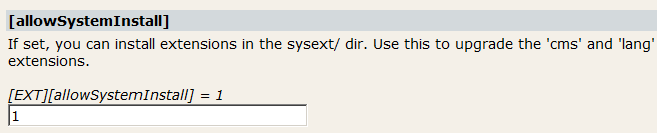
Then scroll to the bottom of the page and click “Write to
localconf.php”. Now you can install system
extensions.4 - The next step is to actually install the updated extension.
In your TYPO3 backend, click on “Ext Manager”
under “Tools” to get to the Extension Manager. Once you’re there,
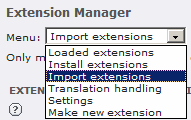
pull down the drop-down menu labeled “Menu:” and
select “Import Extensions” from the list of options:
When the screen updates, look for the form element labeled
“Upload extension file (.t3x):” and click the “Browse” button
next to it:

This will bring up a file chooser. Use the file
chooser to find the .t3x file you downloaded in step 1
and click the “Open” button to select it. - Now we have to be sure to install the extension in the right
place. Notice that beneath the element where we just picked the
.t3x file, there is a drop-down menu labeled “… to
location:”:
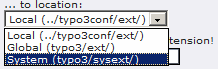
Pull that menu down and select “System
(typo3/sysext/)”. This will install the editor into the
system core. Do not use any of the other options or you will
have multiple versions of the editor floating around in your
system. - Check the checkbox labeled “Overwrite any existing
extension!” — this will erase the old, vulnerable
editor and replace it with the new, fixed one. - Click the “upload extension file” button to
install the extension.
Once you’ve done this, your system will be secure from this
exploit. This is a potentially very dangerous security hole, so
don’t put off closing it until after the holidays — now that
it’s been publicly announced by the developers, we can probably
expect Bad Guys to start trying to hit TYPO3 sites with it any
time now.
- All my instructions are for users of TYPO3 4.x. If you are still using 3.x, there are different editor packages you should get. The bulletin has information on which packages go with which versions.
- If you’ve never
used the Install Tool before, it’s possible that you’ll get an
error when you try it now. This is because this tool is turned
off by default, for security. To turn it on, go into your TYPO3
source directory, find the file named typo3/install/index.php,
and comment out the die() statement in there.
More information on using the Install Tool. - If you’re comfortable editing localconf.php yourself, you can add this configuration paramater manually rather than using the Install Tool.
- After you
install this one, though, don’t put any more in there — any
extensions you install there will be thrown out the next time you
upgrade your TYPO3 core. In this case, that’s not a problem
since the next point release of the core will include the updated
editor.

 A web feed for this site is available,